Export Google Tag Manager data into Spreadsheets
A guide for effortlessly exporting and organising Google Tag Manager data
- Article
- Technical Web Analytics


Exporting Google Tag Manager (GTM) Tag Trigger and Variable information from your container into a spreadsheet can be useful for many reasons. You might want to do an Audit on the container of your new client, or just clean and organise an old container that you are working with for a long time. However, this functionality is not supported by default from GTM. In this article, we will explore various methods to export GTM container information and help you choose the best option based on your needs.
GTM tools add-on
While searching for an easy solution, the first thing I found was the GTM tools add-on for Google Sheets by Simo Ahava. This is a very good solution for many reasons. First, it is easy to use; you simply install the add-on, click one button in Google Sheets, and the job is done! It provides essential information such as tag names, trigger names, and variable names, as well as details about tag type, trigger type, and variable type.
However, this add-on has its limitations. Since it relies on the Tag Manager API to retrieve information, it can only provide what the Tag Manager API offers. For example, the only information provided for the Firing Triggers is a "Firing Trigger ID", which does not offer much insight to the user. The same applies for the Exception Triggers.
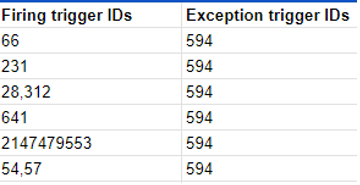
Ideally, you would want the actual names of the firing triggers and exception triggers for each tag, not just an ID. Mapping the firing trigger ID to the trigger name requires additional work in Google Sheets. Another drawback of the Tag Manager API, and consequently the GTM Tools add-on, is that some returned values for tag type and variable type can be confusing and require extra effort to interpret. Here are some examples of tag types returned by the Tag Manager API:
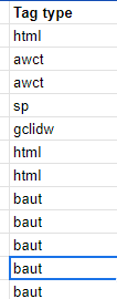
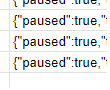
Would you have guessed the tag type without searching for it in your container? I could not. Additionally, if you want to know whether a tag is paused, you need to search through the JSON returned in column K. This is because the information is not properly presented in the columns.
How can we avoid these blockers that complicate the process?
I found the solution in an article of Axon Digital. They provided a script that you can copy and paste into your console to return a JavaScript object containing all the necessary information . You can then use a JSON-to-CSV converter to convert the JS object into CSV format and import the CSV into Excel or Sheets.
The only thing I was missing from this solution was that this script was working only for the Tags page and not for the Triggers or Variables.
So, I modified Axon Digital's script and created two scripts, one for the Triggers page and one for the Variables page. The procedure is the same: copy and paste these scripts into your console to retrieve information for your GTM Triggers and Variables.
Since these scripts scrape information from the Google Tag Manager HTML, they depend on the stability of the selectors used. As we all know in tagging, that stability doesn't last forever. These scripts were evaluated at the time of publishing. If you try to use them and they no longer work please let us know, and we will update the script.
Try out these scripts and streamline your GTM data export process. Below are the scripts you need to get started:
GTM Triggers Script
// Paste this script in the Console section of your browser Dev Tools.

gtmData = [];


var button = document.querySelector(".suite.suite-up-button.md-button.md-standard-theme.md-ink-ripple.layout-align-start-center.layout-row");


// Extract the account name

var accountNameElements = button.querySelectorAll(".suite-up-button-text-secondary");

var accountName;

if (accountNameElements.length > 1) {

accountName = accountNameElements[1].textContent.trim();

} else {

console.log("Expected more than one .suite-up-button-text-secondary element, found less");

}


// Extract the GTM container name

var gtmContainerNameElement = button.querySelector(".suite-up-text-name");

var gtmContainerName = gtmContainerNameElement.textContent.trim();


// GTM Container ID

var gtmNumber = document.querySelector('.gtm-container-public-id.md-gtm-theme').textContent.trim();


document.querySelectorAll('tr[gtm-table-row]').forEach(n => {

const td2 = n.querySelector('td:nth-child(2)');

const td3 = n.querySelector('td:nth-child(3)');

const td4 = n.querySelector('td:nth-child(4)');

const td5 = n.querySelector('td:nth-child(5)');

const td6 = n.querySelector('td:nth-child(6)');

const td7 = n.querySelector('td:nth-child(7)');


const triggerName = td2 ?td2.textContent.trim() : '';

const eventType = td3 ?td3.textContent.trim() : '';

const triggerFilters = Array.from(n.querySelectorAll('td:nth-child(4) .gtm-predicate-summary-row')).map(conditionElement => conditionElement.textContent.trim());

const folder = td5 ?td5.textContent.trim() : '';

const tags = td6 ?td6.textContent.trim() : '';

const lastEdited = td7 ?td7.textContent.trim() : '';


const tag = {

Account: accountName,

Property: gtmContainerName,

GTM_Container: gtmNumber,

Name: triggerName,

Type: eventType,

Folder: folder,

Tags: tags,

Last_Edited: lastEdited,

Trigger_Filters: triggerFilters

}


gtmData.push(tag);

})


console.log(gtmData); // To see the output in consoleGTM Variables Script
// Paste this script in the Console section of your browser Dev Tools.
gtmData = []; //create empty gtmData array.


// get the account / container element and store it in a variable named "button"

var button = document.querySelector(".suite.suite-up-button.md-button.md-standard-theme.md-ink-ripple.layout-align-start-center.layout-row");


// Get the All Accounts > {{account name}} elements in array format and store them in a variable

var accountNameElements = button.querySelectorAll(".suite-up-button-text-secondary");


// Extract the account name

var accountName;


if (accountNameElements.length > 1) {

accountName = accountNameElements[1].textContent.trim();

} else {

//if there is no account name element

console.log("Expected more than one .suite-up-button-text-secondary element, found less");

}


// Extract the GTM container element

var gtmContainerNameElement = button.querySelector(".suite-up-text-name");


//Get the GTM Container name

var gtmContainerName = gtmContainerNameElement.textContent.trim();


// GTM Container ID

var gtmNumber = document.querySelector('.gtm-container-public-id.md-gtm-theme').textContent.trim();


document.querySelectorAll('div[data-table-id="variable-list-user-defined"] tr[gtm-table-row]').forEach(n => {

//get the second column value and store it in a variable

const td2 = n.querySelector('td:nth-child(2)');

//get the third column value and store it in a variable

const td3 = n.querySelector('td:nth-child(3)');

//get the fourth column value and store it in a variable

const td4 = n.querySelector('td:nth-child(4)');

const td5 = n.querySelector('td:nth-child(5)');


//remove whitespaces and store the value in a new variable. Also if the value does not exist set an empty string.

//tags

const variableName = td2 ?td2.textContent.trim() : '';

//event type

const type = td3 ?td3.textContent.trim() : '';

//firing triggers

const folder = td4 ?td4.textContent.trim() : '';

//last edited

const lastEdited = td5 ?td5.textContent.trim() : '';


const tag = {

Account: accountName,

Property: gtmContainerName,

GTM_Container: gtmNumber,

Name: variableName,

Type: type,

Folder: folder,

Last_Edited: lastEdited

}


gtmData.push(tag);

})


console.log(gtmData); // To see the output in consoleConvert JSON to CSV/Excel
As mentioned in the Axon Digital article, the last thing you need to do is to convert the JavaScript Object returned to the console into a CSV.

To achieve this you can either use a free JSON to CSV converter or if you are familiar with Python you can also use the following script:
# Convert JSON object to CSV


import pandas as pd


# Create DataFrame from JSON file

df = pd.read_json('file.json') # path to your JSON file


# Save DataFrame to CSV file

df.to_csv('file.csv', index=False) # target path and file name We’re ready to help
I hope this article was useful and saves you time and energy when organising your GTM containers. Would you like to get help with streamlining your GTM data export process? Feel free to reach out to us.
Receive data insights, use cases and behind-the-scenes peeks once a month?
Sign up for our email list and stay 'up to data':